
Live Processing
Required:
Create THREE different types of live processing chains with either your voice, or any other instrument (feel free to invite a performer to play for you, if possible). Use the processing setup showed in class, and described below.
Remember to record what the instrument is playing so that you can play it back later and do more experimentation.
Live processing setup in Logic:
IMPORTANT, FOR THE 10am-12pm GROUP, there's a small change to the setup we did in class. Please follow the directions below. (For the 2pm-4pm group, this is what we covered in class).
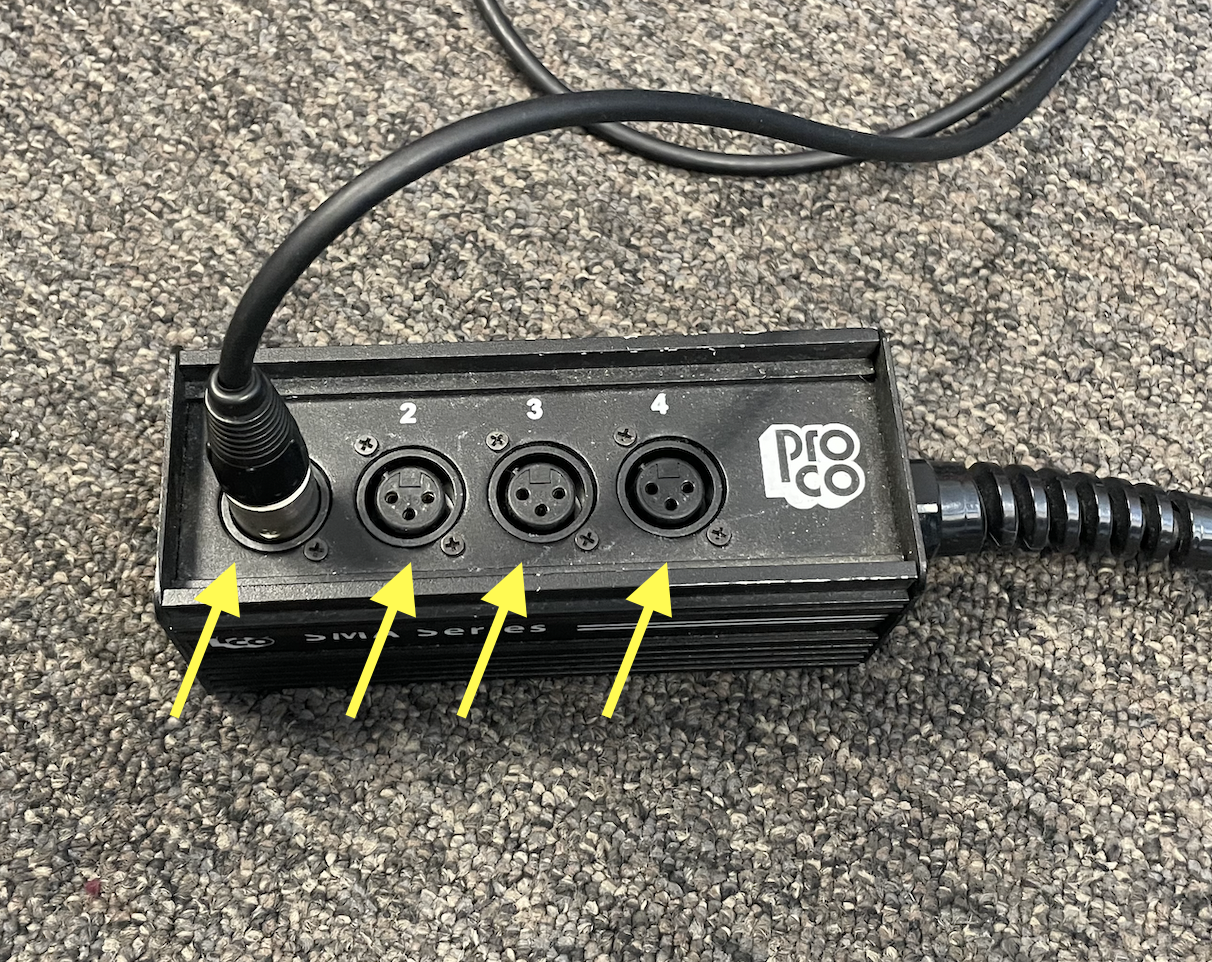
• Connect a microphone to the floor snake to input 1, 2, 3, or 4. Use either the small black Lewitt condenser (requires phantom power!), or the Sennheiser dynamic mic.
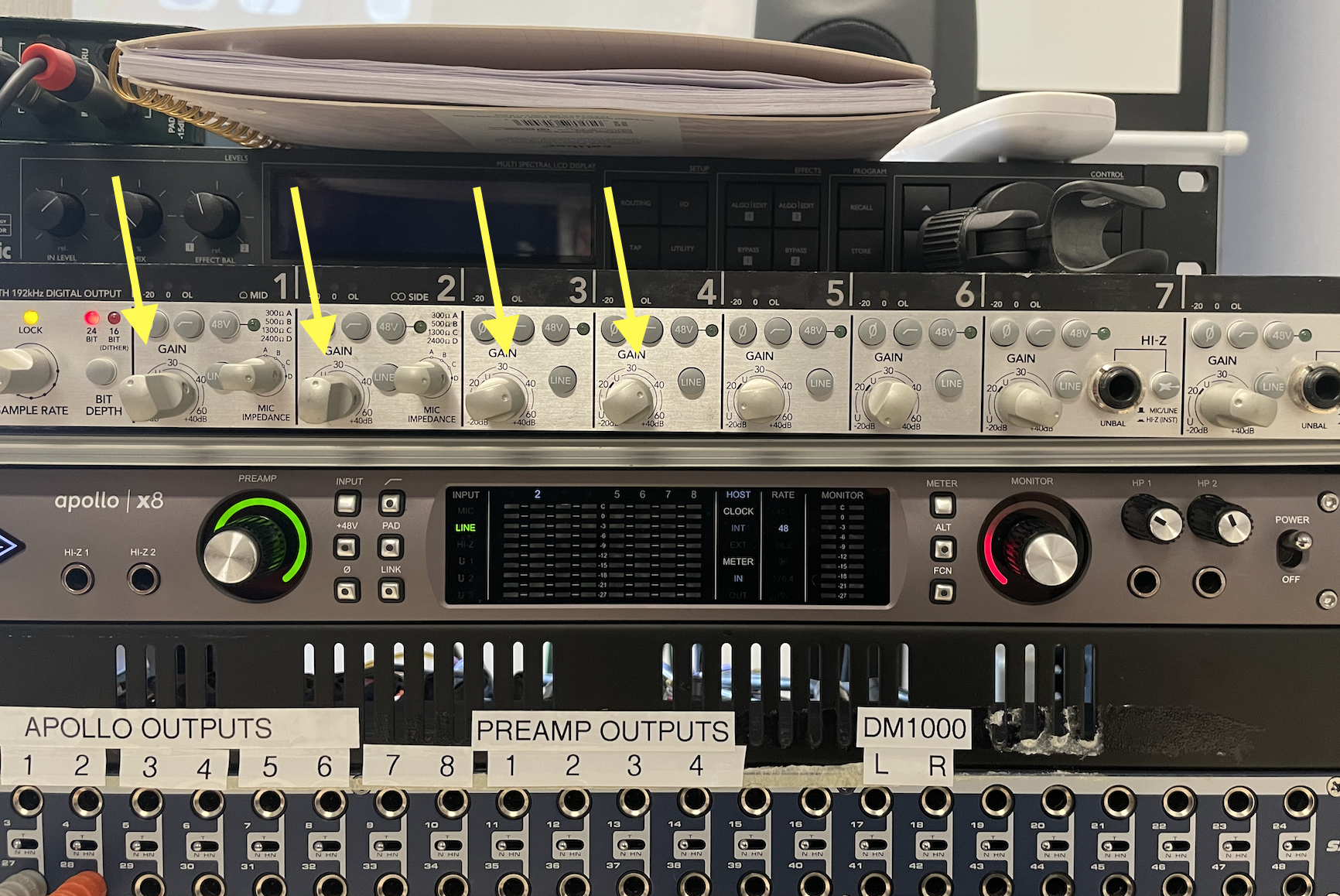
• Adjust the preamp level on the Mackie preamp channels 1, 2, 3, or 4.
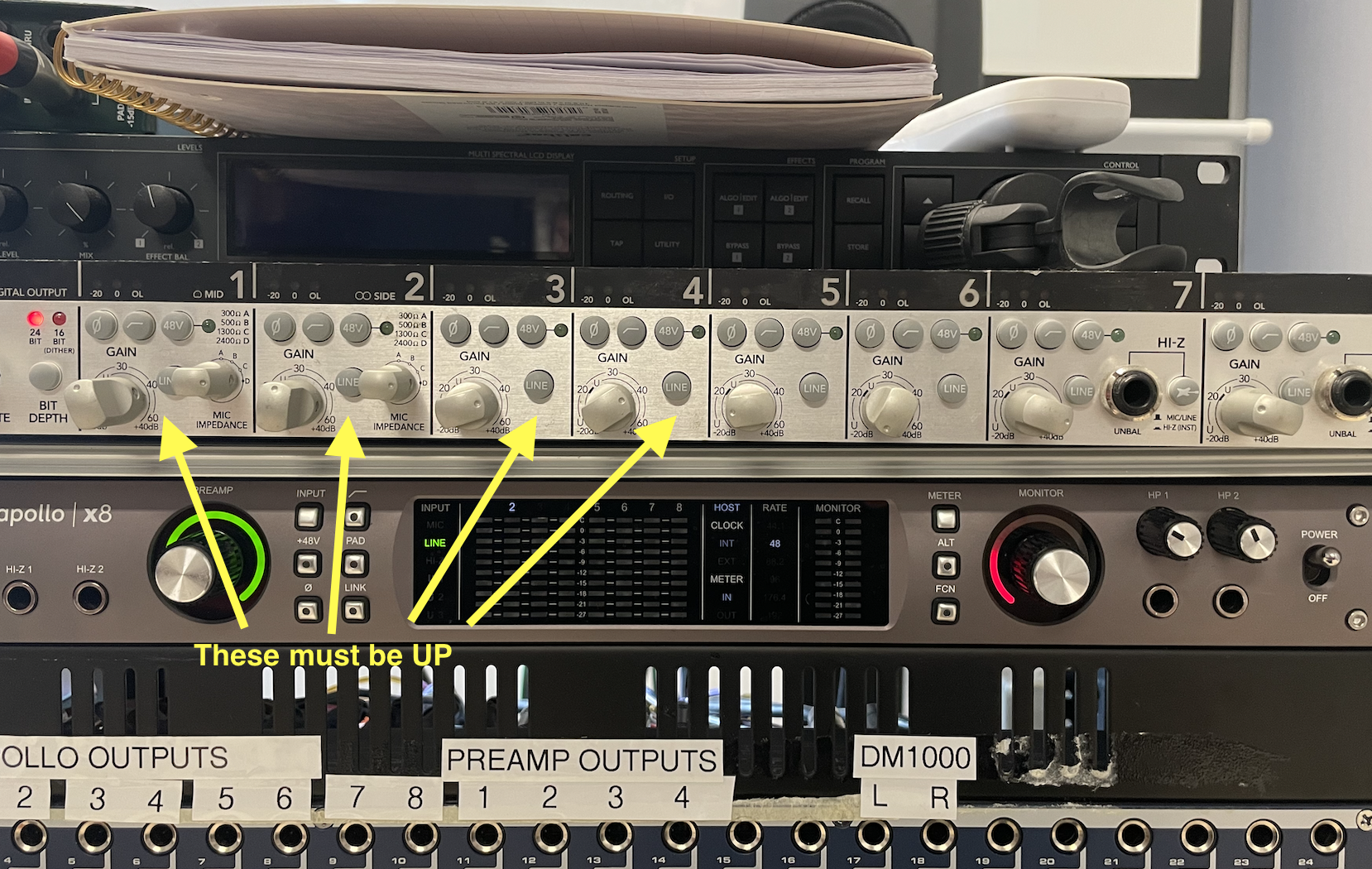
• On the Mackie preamp channels that your using, make sure the LINE button is UP.
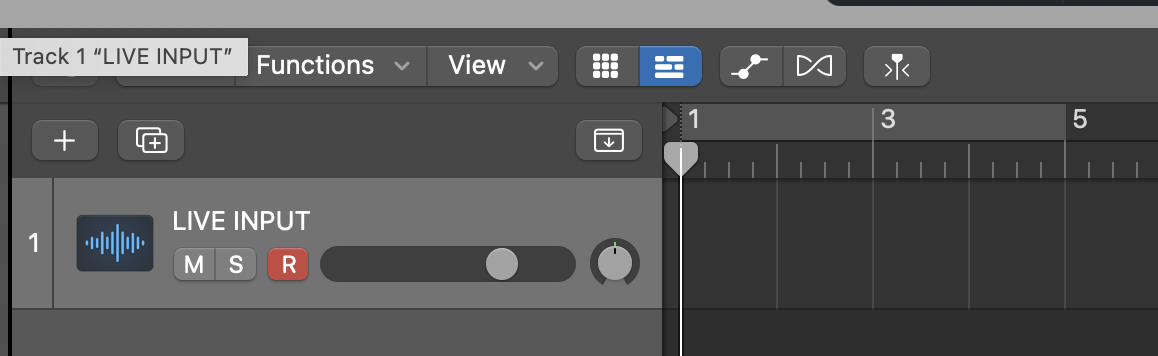
• In Logic, create an audio track with the input number to which your microphone is connected. Name that track "LIVE INPUT".
MAKE SURE THE MICROPHONE IS POINTING AWAY FROM THE SPEAKERS. If not, then you will surely get feedback.
• Click on the red "R" to record enable the LIVE INPUT track. You should see the mic level on the meter; adjust the preamp gain as necessary (see Assignment 1 if in doubt).
• Hit the X key to reveal the mixer.
• On LIVE INPUT strip, click on SENDS, and choose BUS1 (could be any other bus if you plan to use BUS1 for something else). A new strip, name AUX1, will be created. Rename the AUX1 strip "DSP1".
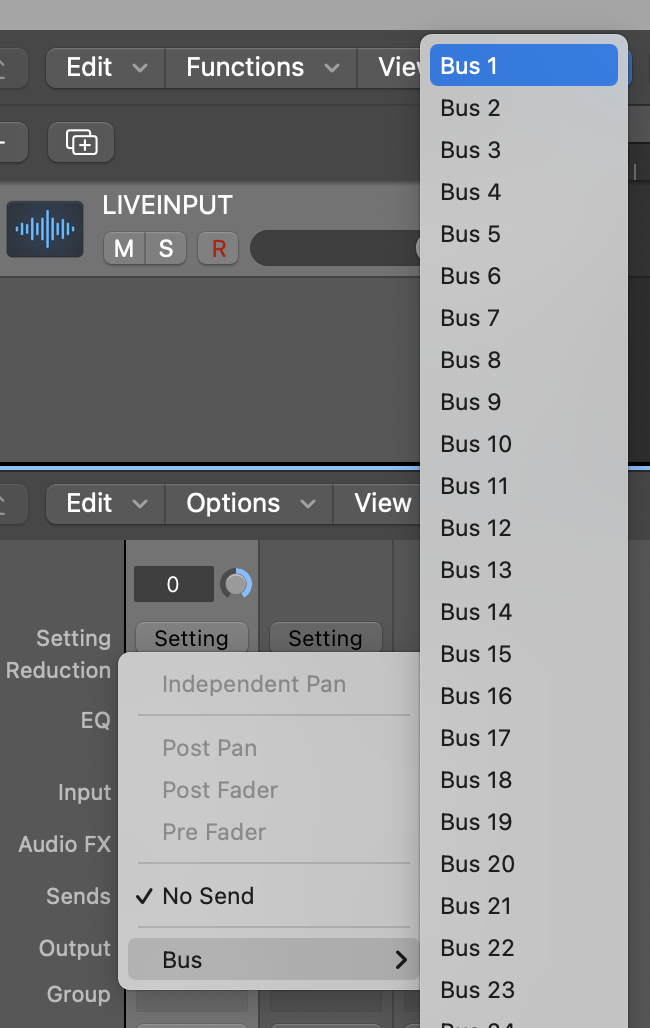
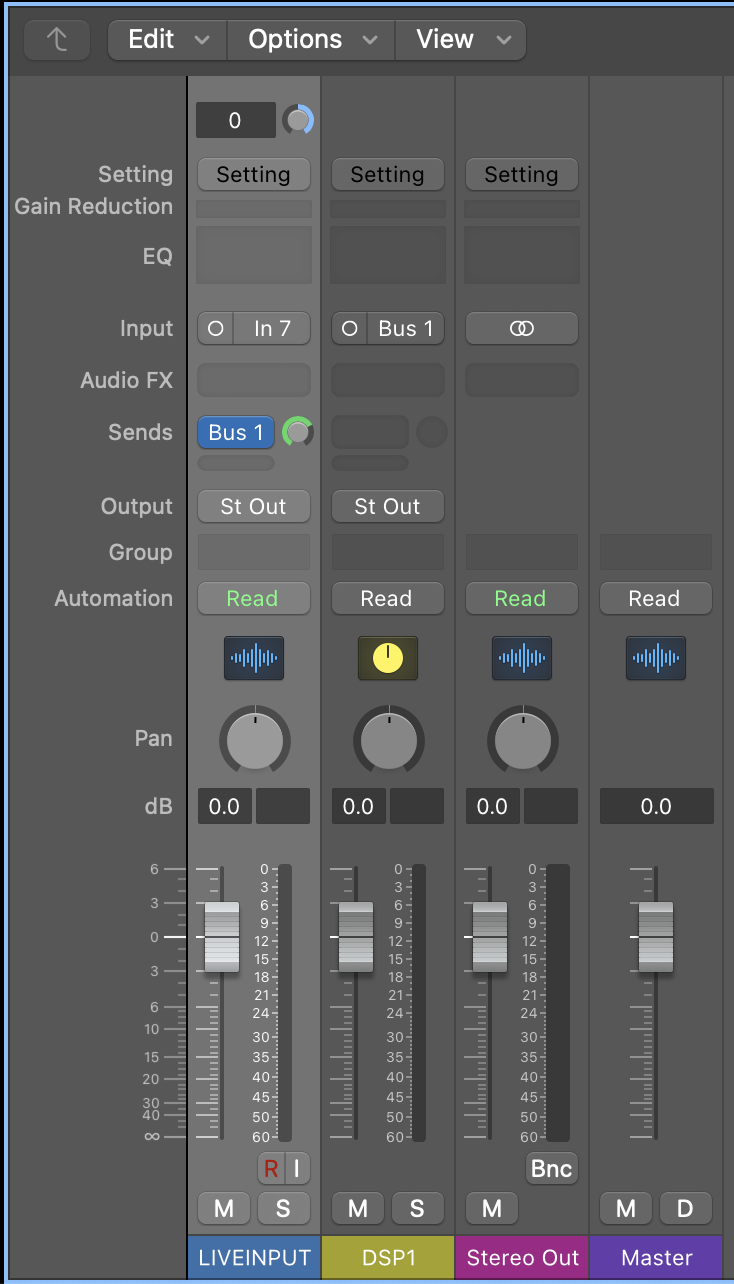
• Option-click on the little circle next to the SENDS button. This controls how much of the LIVE INPUT track is being sent to the AUX1 strip.

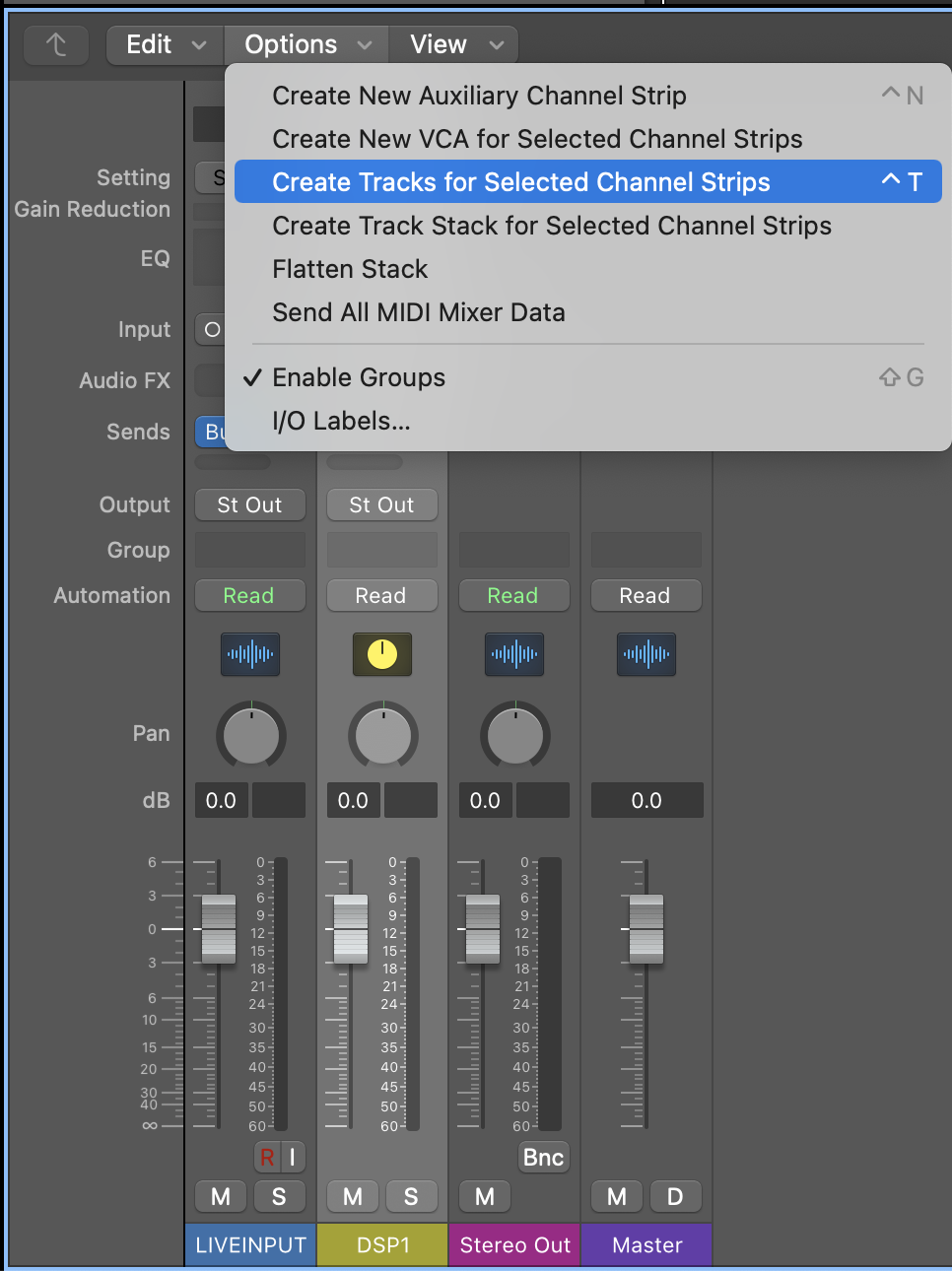
• Click on the DSP1 strip (i.e., AUX1) and go to the Options menu at the top of the mixer window. Then choose "Create Tracks from Selected Channel Strip". A new DSP track will be created in the arrange window.
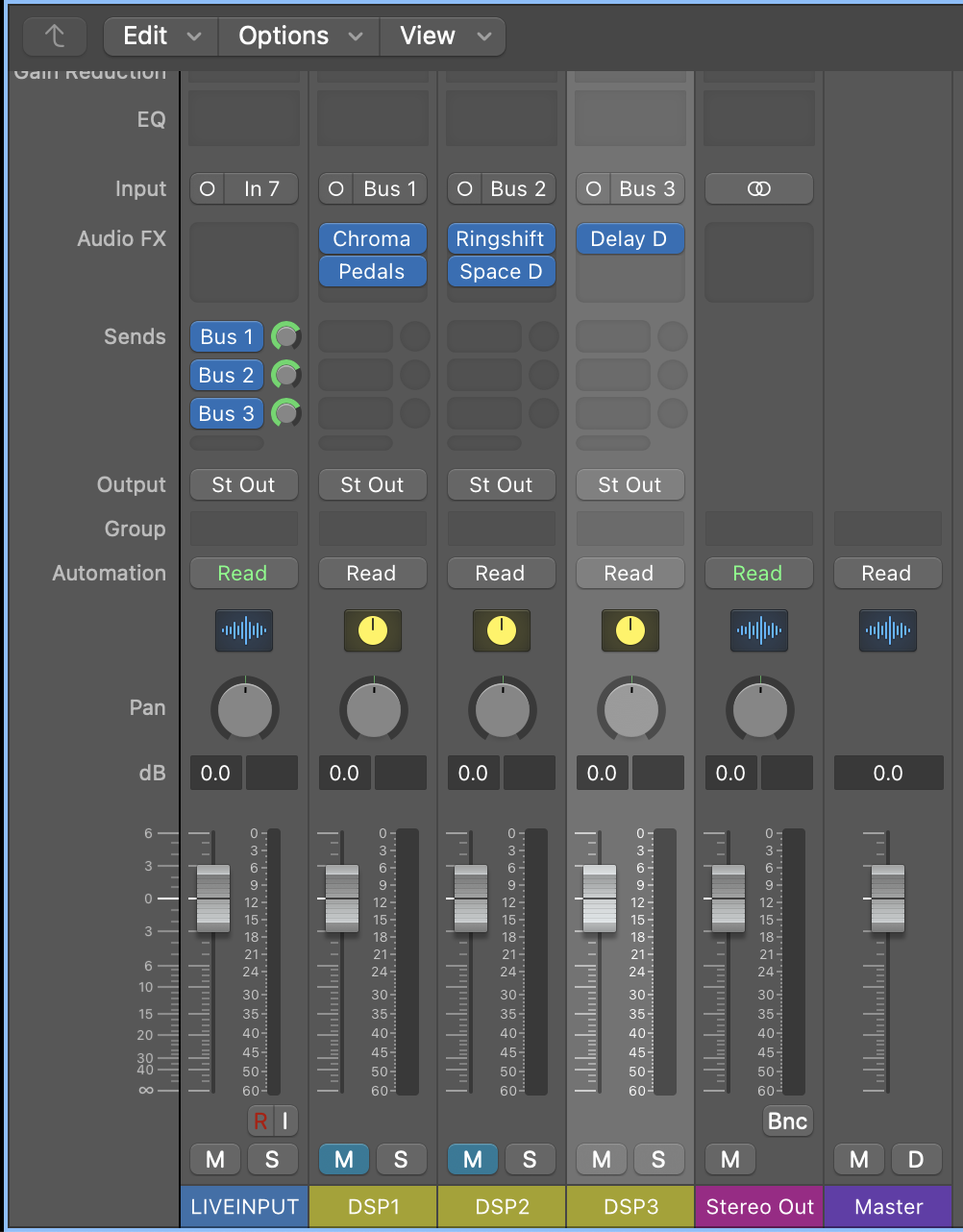
• On the DSP1 strip, experiment with different plugins to create a signal processing chain that you like. Remember that the first plugin MUST be WET only (or 100% mix).
• Repeat the previous four steps to create two more processing channel strips, which you should name DSP2, and DSP3. You should end up with THREE different processing strips. However, we only want to hear one at a time, so use the MUTE button accordingly.
• When working with a live performer, click "No Output" on the LIVE INPUT strip. This will remove the performer's direct sound from going to the speakers.
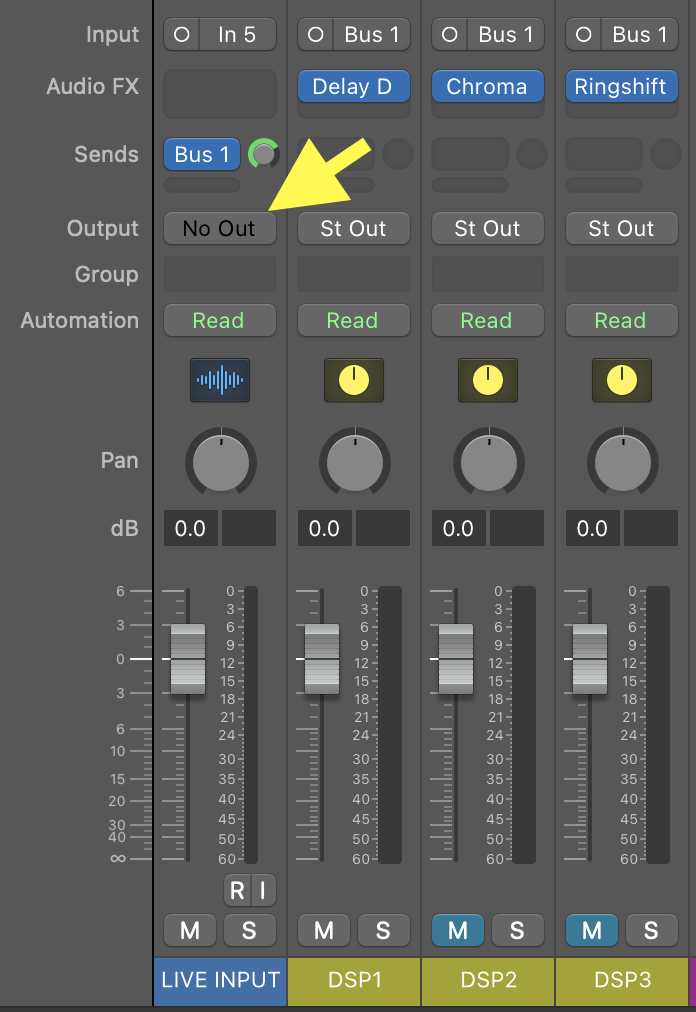
• When working without a performer, set the output back to "Stereo Output" on the LIVE INPUT strip. This will allow you to simulate the sound of the dry live instrument.