
Part 1
If working on your own machine, download and install the following :
Download and install the SIR Spectrum Analyzer Plugin and Spear:
Spear
http://www.klingbeil.com/spear/downloads/
Then, open Spear, open any sound file you have, and experiment with the ALL of the tools in the toolbar.
Part 2
Bookmark the Online Note Calculator.
Download the Assignment Audio:
https://we.tl/t-V0xvM5jYRb
Create a 30 second miniature using ONLY ONE of the TAMTAM audio files linked above, along with Spear. There are four main requirements:
1- Your analysis should included a MINIMUM of FOUR partials.
2- Part of the miniature must use the included SineTone-A-440Hz file, tuned to one of the partials of your sound for Spear.
3- You must tune some other Logic plugin (processing or instrument). See below.
4- In your Logic project, please have a track for the original sound, and one for the version processed in Spear. The original sound doesn't kneed to be part of the composition; I just want to be able to hear all of the source material individually.
Otherwise, you can edit/process your sound as much as you like, and there is no aesthetic requirement.
Example Procedure:
Processing:
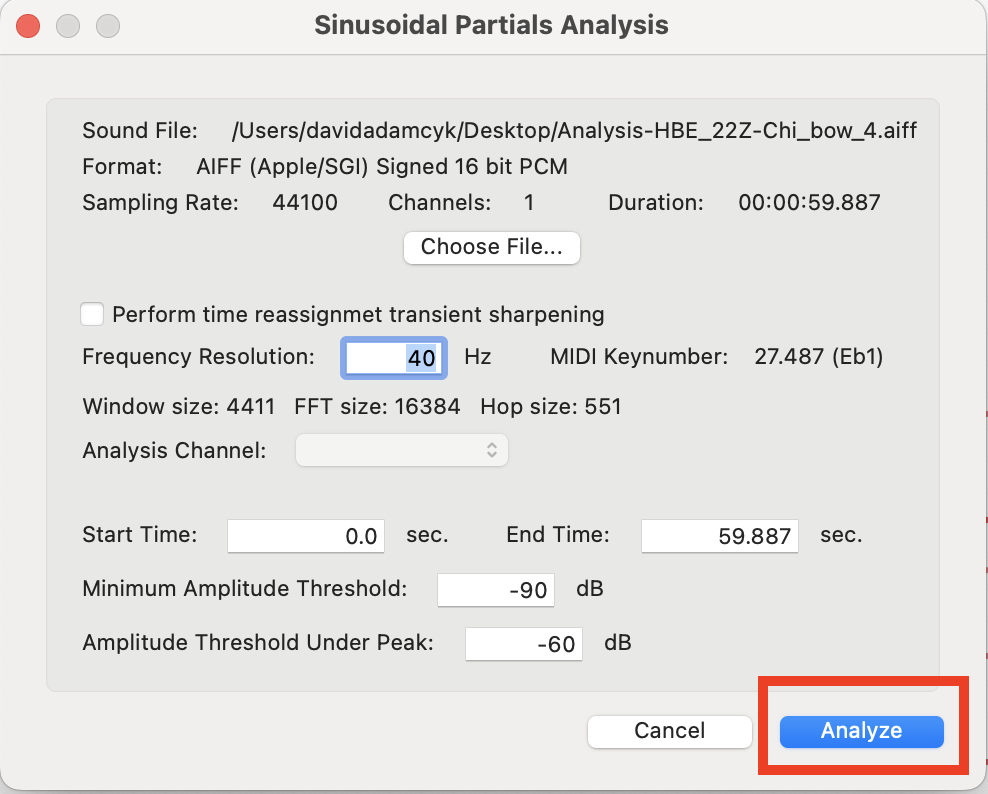
• Open a sound in Spear (do not change any of the analysis parameters, simply click Analyze)
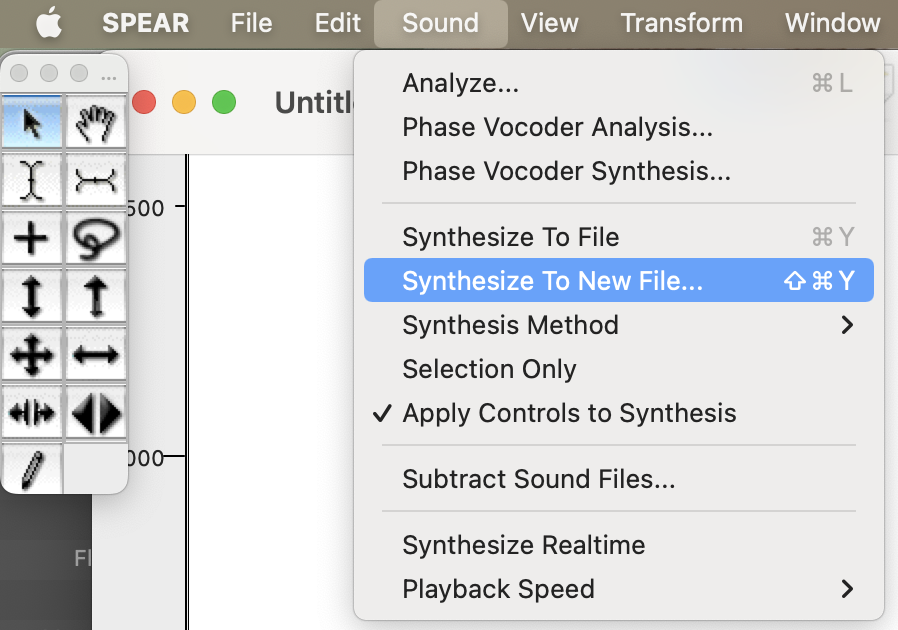
• Do any number of transformations on the sound using Spear's tools (as demonstrated in class last week). Once satisfied with the result, choose "Synthesize To New File" from the "Sound" menu, and save your processed sound somewhere on your computer.
Analysis:
• Still in Spear, open the processed sound you just created, and select/listen to various partials to find some that you find sonically interesting. Remember that you can hit shift-space to play back only the partials that you've selected with the arrow tool.
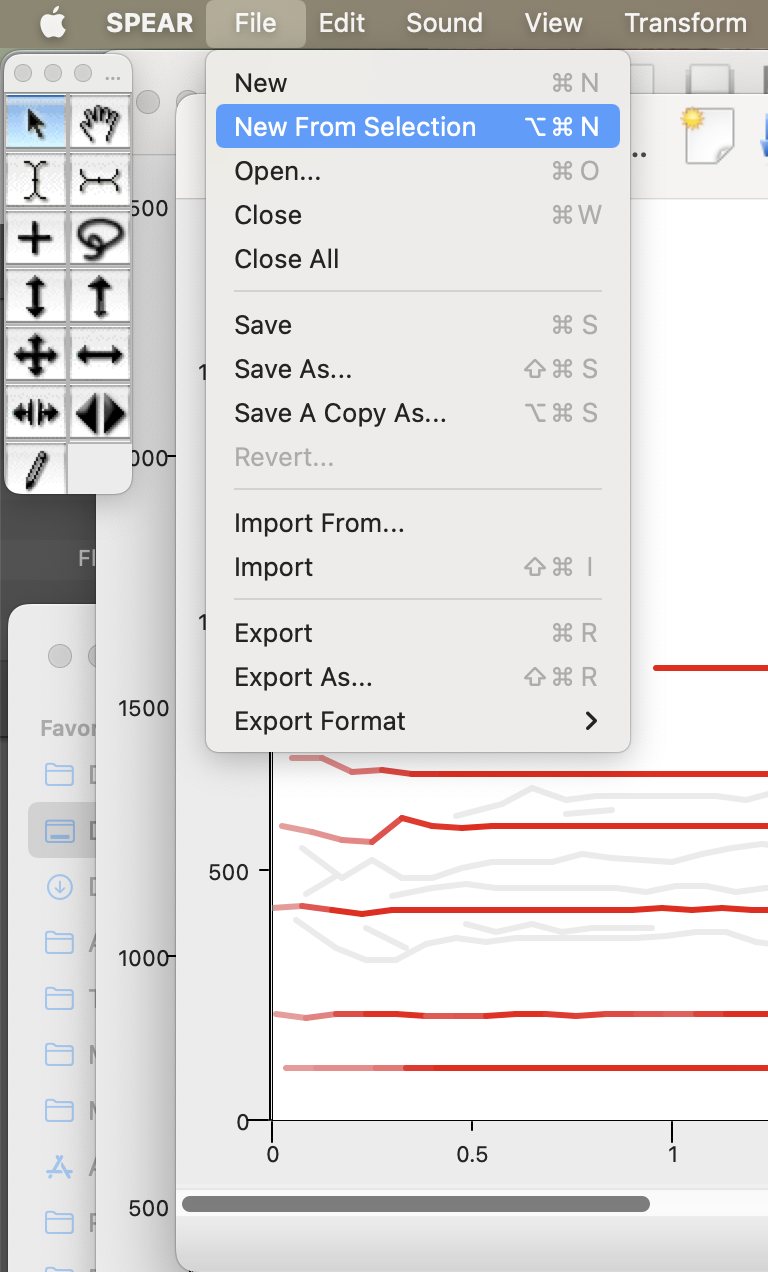
• Once you've found some interesting partials, select them all by shift-clicking on each one, and then hit command-C (or choose "Copy" in the "Edit" menu). Then choose "New From Selection" from the "File" menu. This will create a new window with only the selected partials in it.
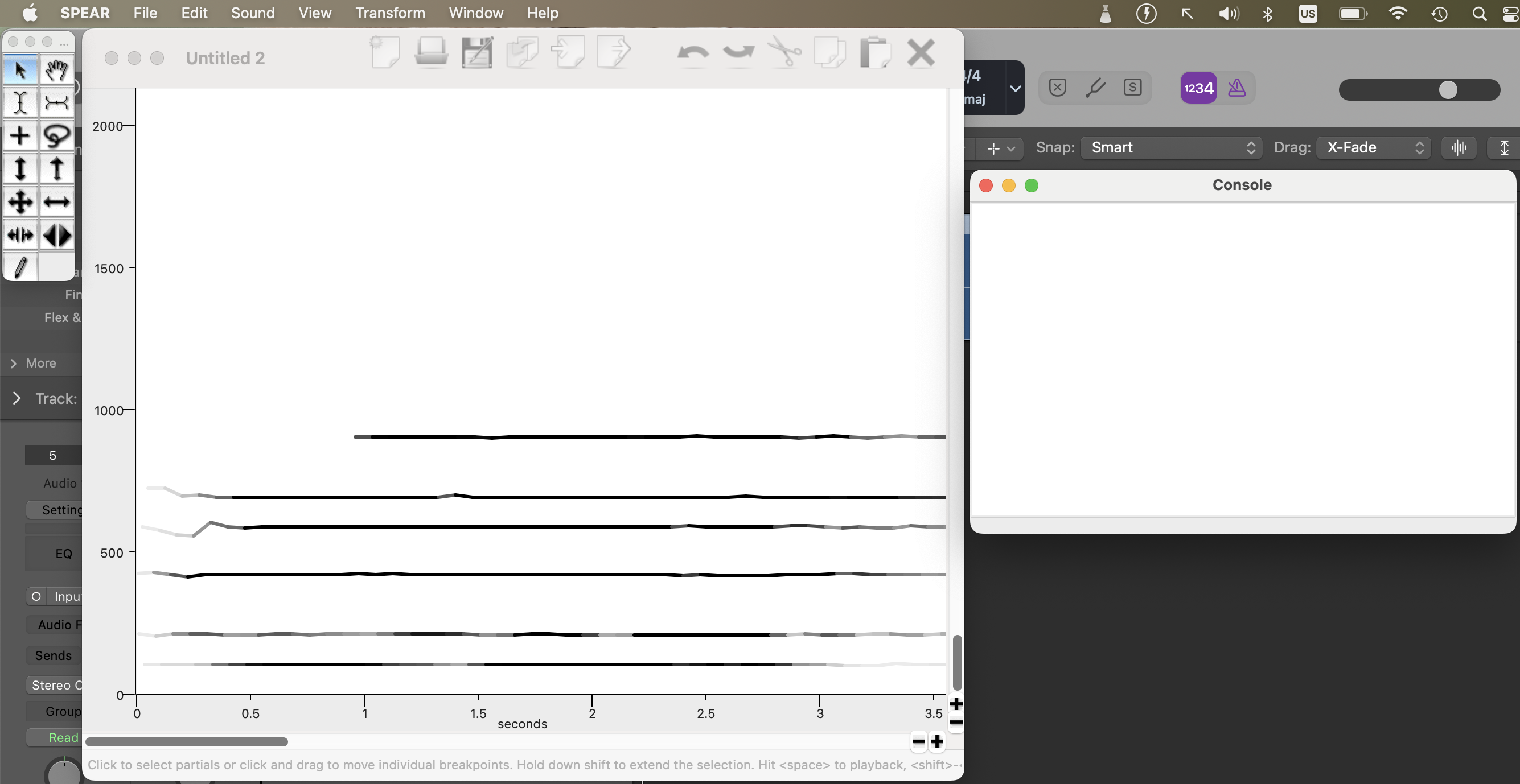
• Open the console by clicking "Console" from the "Window" menu. An empty window should appear near the bottom right of your screen. Re-arrange the windows so that you can see both the analysis window and the console at the same time.
• Hit command-A to select all the partials in the analysis window. Then choose "Print Average Frequencies" from the "View" menu. You will see appear all the frequencies of the partials in the console window. Note that these will NOT be in ascending order.
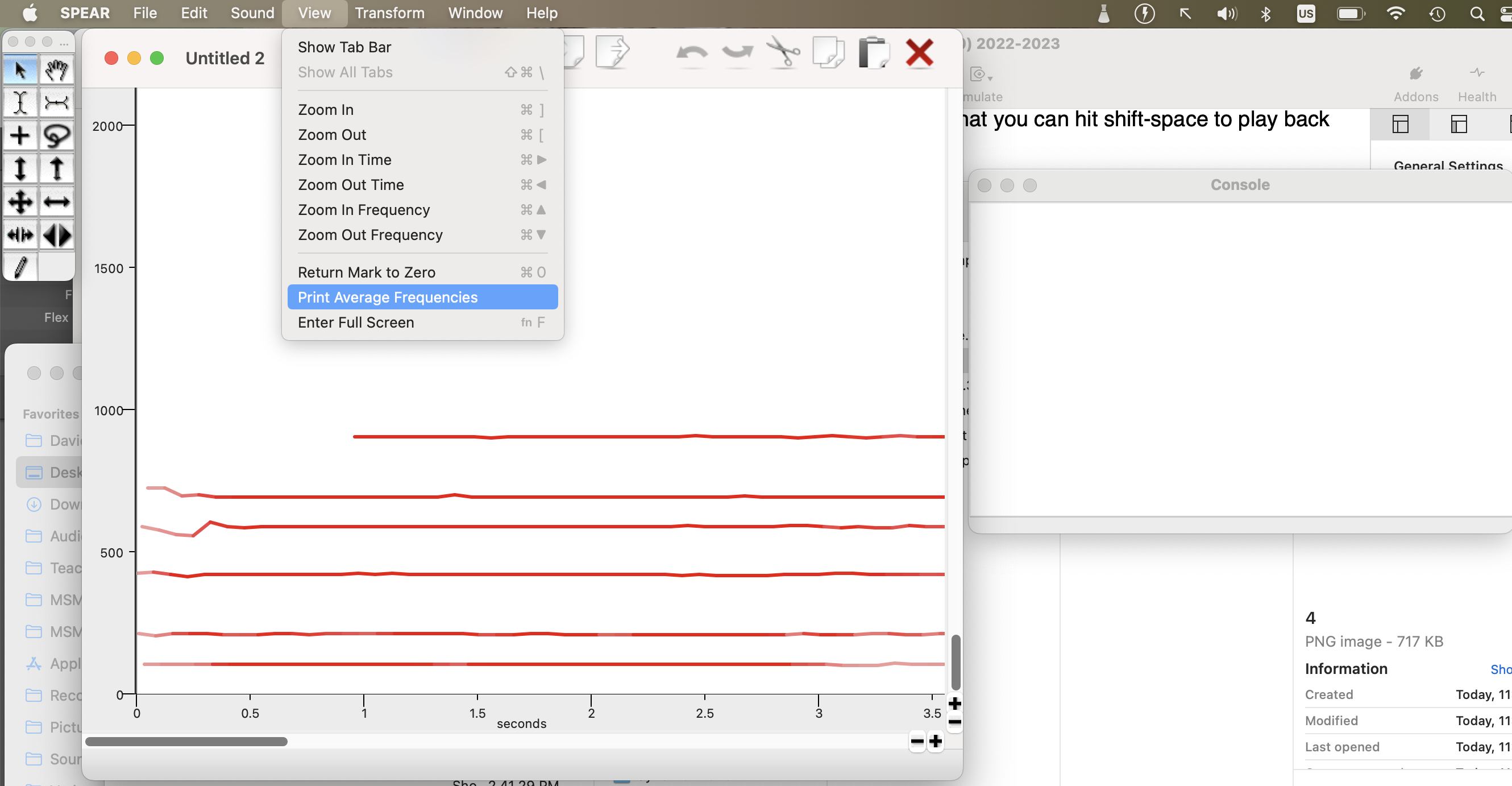
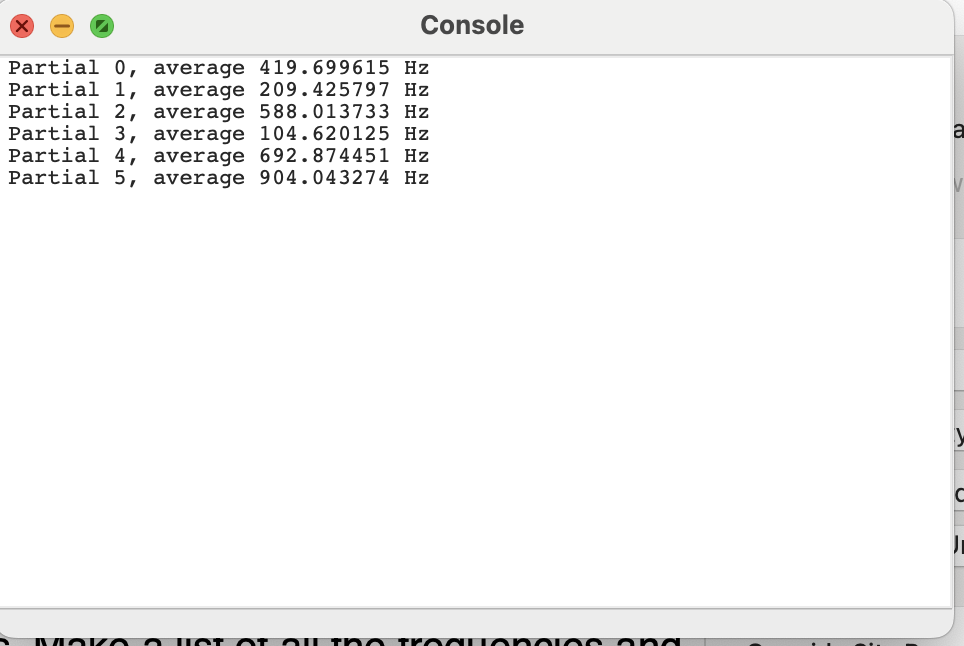
• One by one, in ascending frequency order, copy the frequency number into this online calculator, to covert the frequencies into pitches, as shown in class. Make a list of all the frequencies and corresponding notes in a text document.
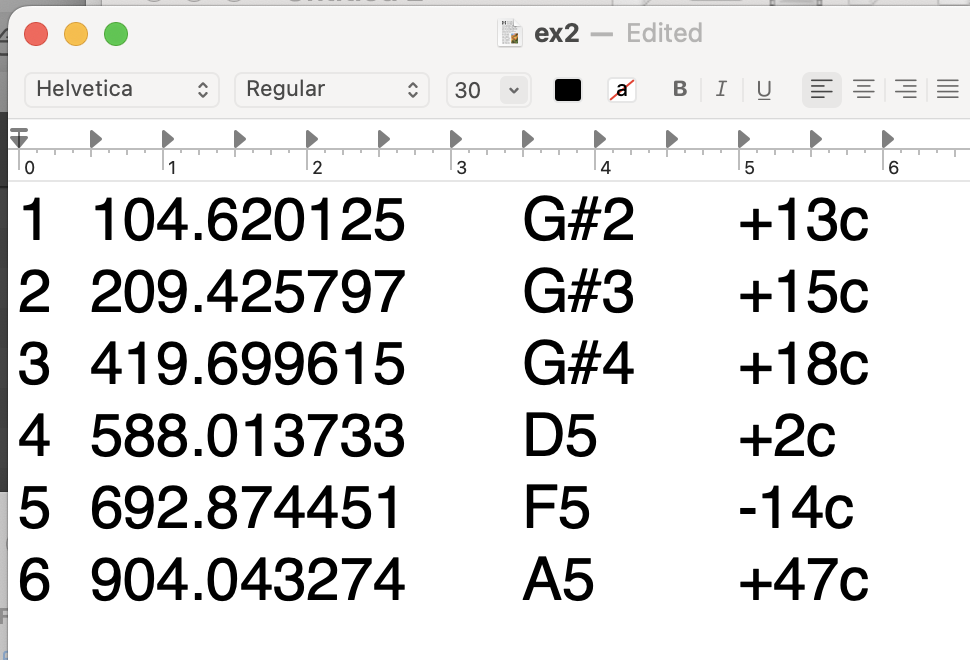
• (Optional) Consider notating the pitches on a musical staff (either by hand or in software). This will make it easier to see what you have from a musical stand point. Note that C4 is middle C.

Tuning Audio Files in Logic:
• Import the sound you processed into Logic. In addition, import the SineTone-A-440Hz.wav file.
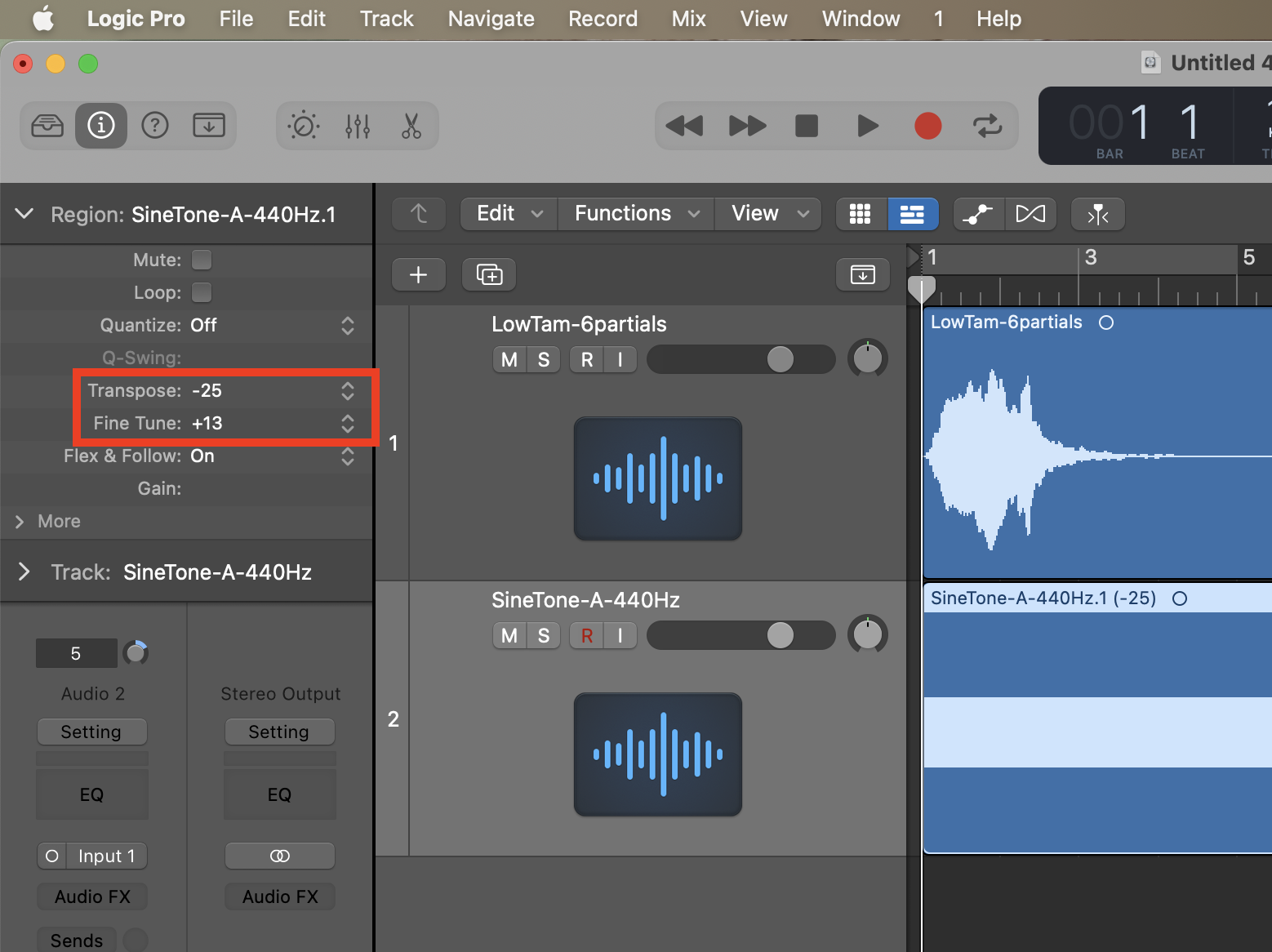
• Select the SineTone file, then go the Region Editor (top left). There, use the Transpose and Fine Tune sections to tune the SineTone file to one of the partials, as shown in class. For example, if a partial has a pitch of G#2 + 13 cents, then you will have to transpose the SineTone file by -25 semi-tones (= 2 octaves and 1 semi-tone), +13 cents. Note that C4 is middle C.
• Once the SineTone file is properly tuned, convert it to a new audio file by choosing "Bounce and Join->Bounce Region in Place" from the "Edit" menu.
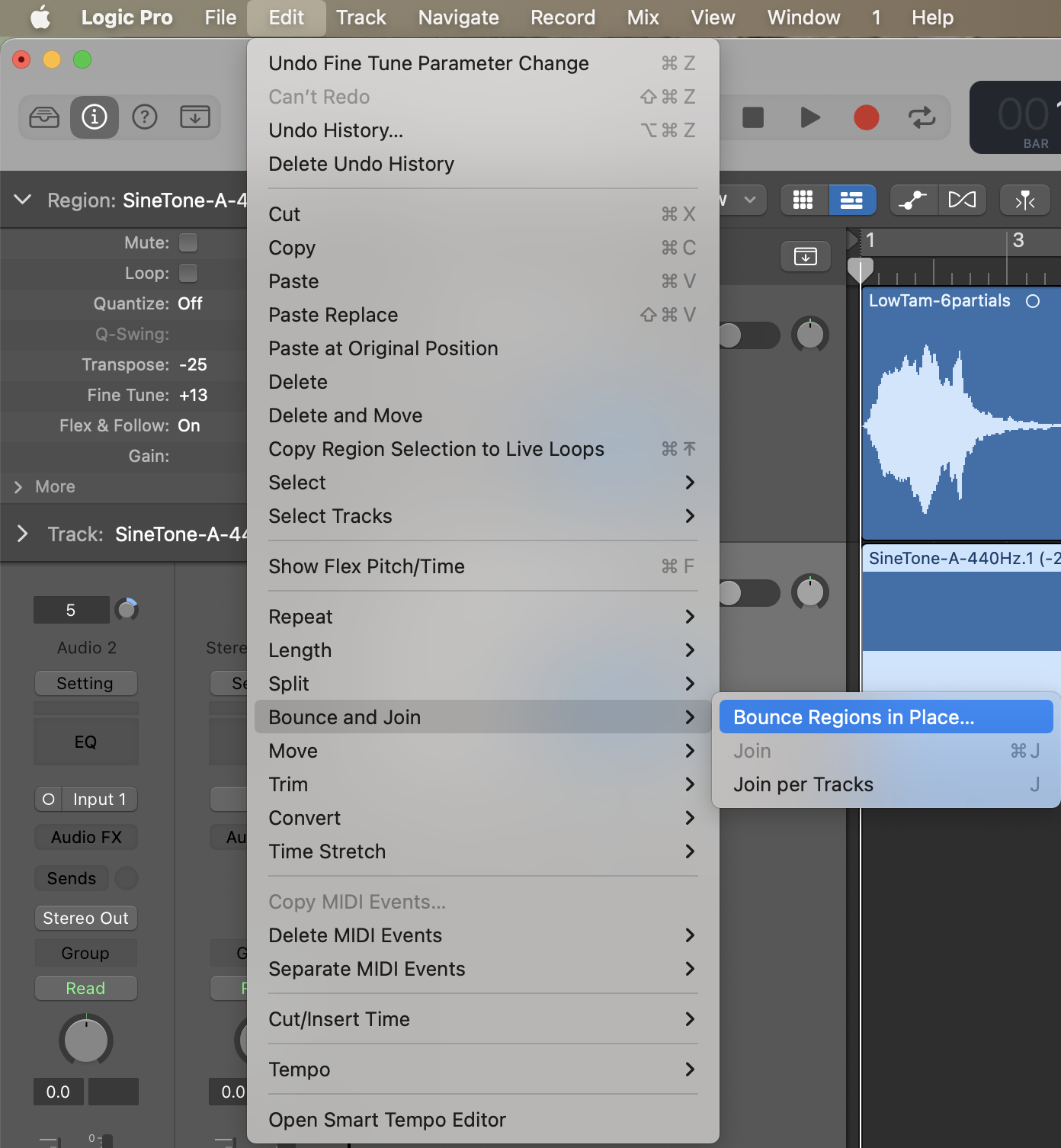
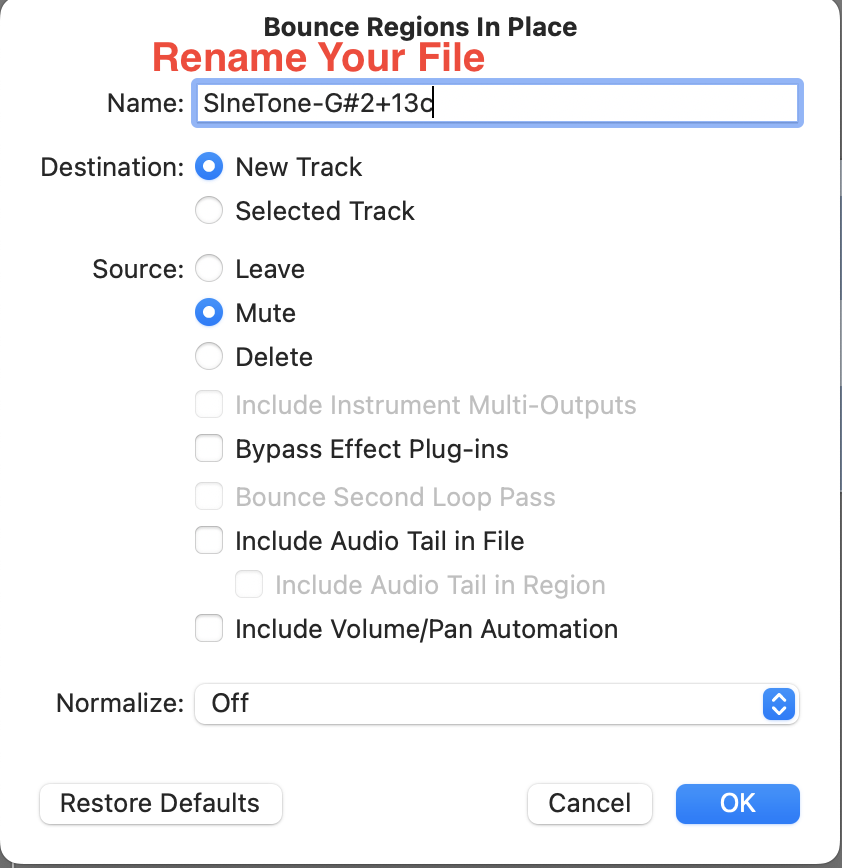
• Repeat the last two steps for all the partials in your analysis.
What else can you tune in Logic?
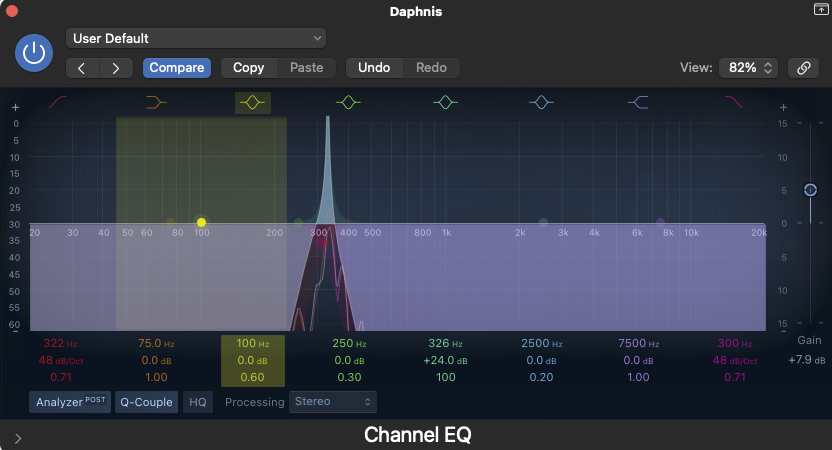
• You can tune the frequency of a band filter (or another effect where the frequency can be adjusted). For example:
• You can tune one software instrument at a time using the "tuning" feature in the software instrument plugin.
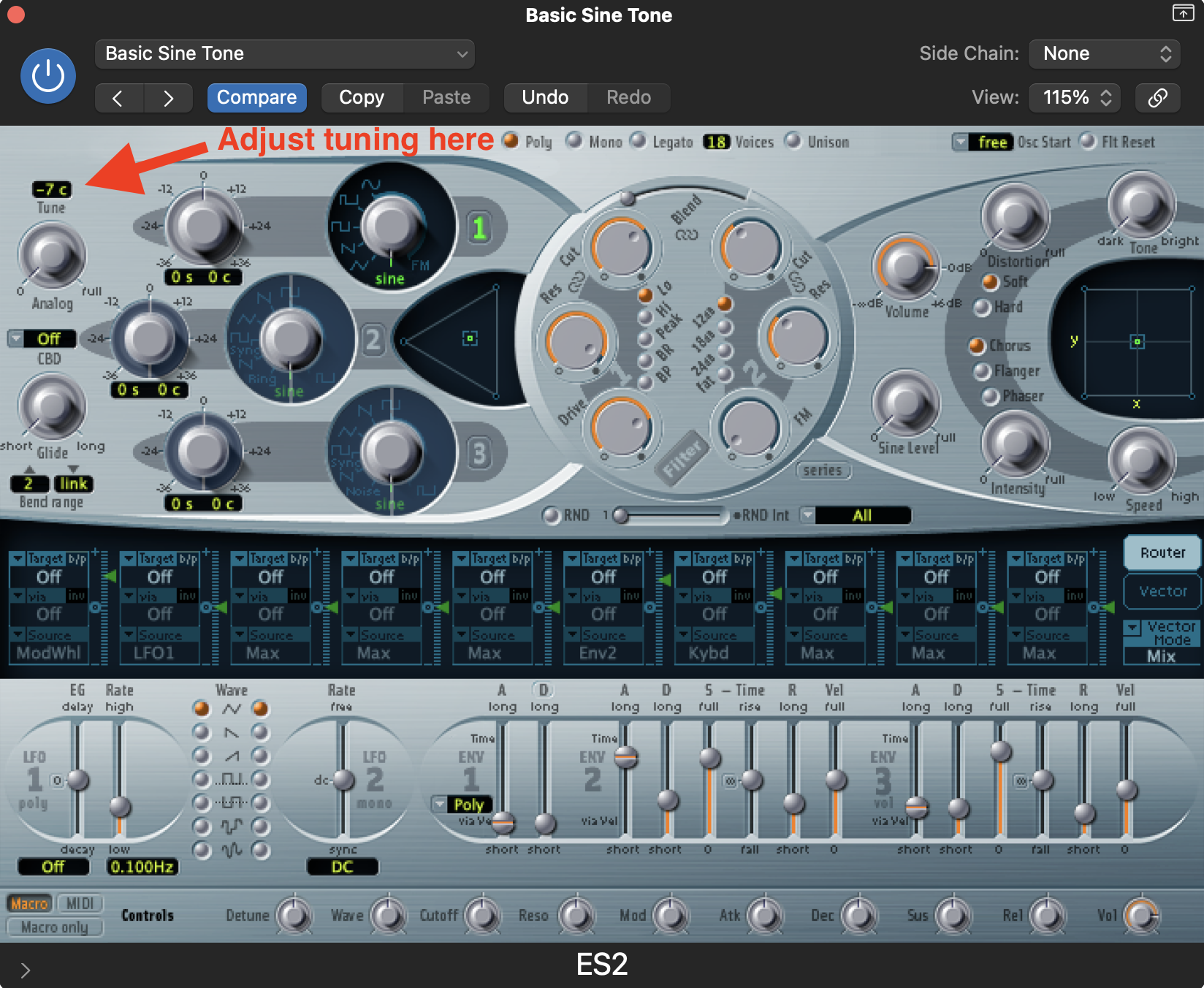
Note that, by default, middle C is NOT C4 in Logic (it's C3). To change middle C to C4, go to Logic->Preferences->Display->General
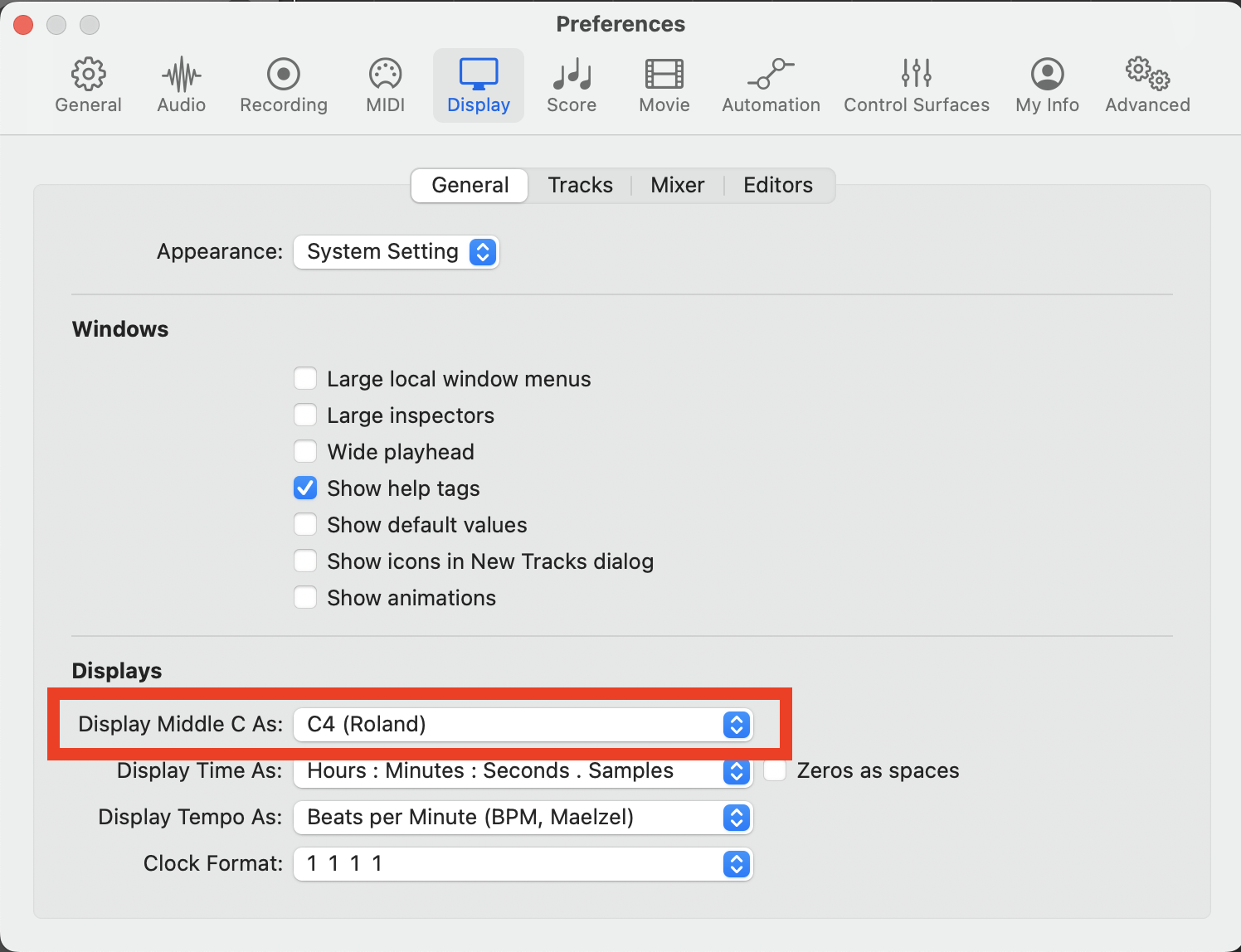
• You can tune all the software instruments using the "Tuning" tool in the tuning preferences. Go to File->Project Settings->Tuning
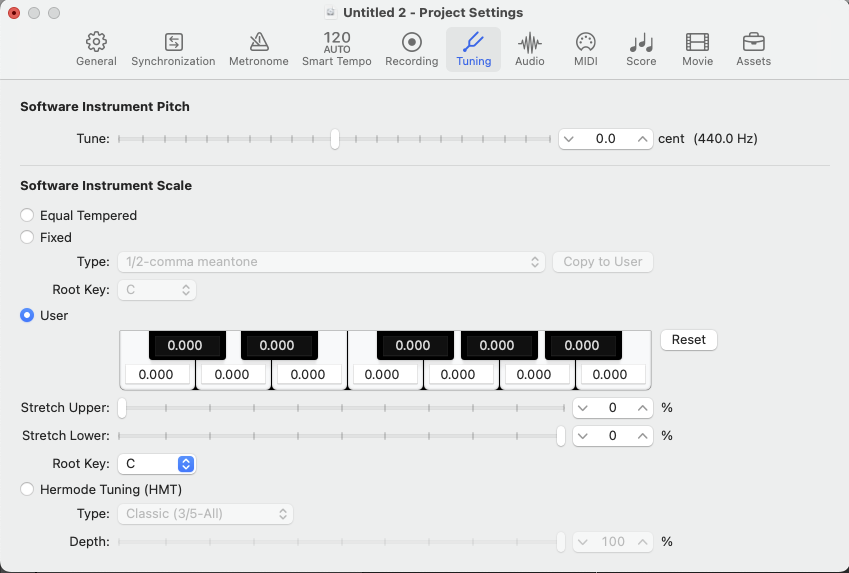
Be prepared to show your work in class.
What can you do with this analysis
Pitches
• Use the pitches for your instrumental material. You might opt to round off the pitches to the nearest 1/4 tone for playability.
• Use the pitches with synthesizers. To get microtones from the synth plugins, use the "Tune" parameter (which can be automated). If you want chords, you will have to use multiple instrument tracks with the same synth on each one, but with different tunings.
• Tune filters to the frequencies of the partials you find.
• Transpose other sounds to tune them to the partials you find.